
Introduction
The scope and goal of this blog is to check the box in the simplest way possible that only Entra devices (at any level) can authenticate to 365. The easiest way to do that is to target Entra Registered as our goal post so that's what this blog will describe.
Keep in mind that the Conditional Access Policy and the exclusion group outlined here are still the same methods you would use for full Entra Joined, but maybe you'd take out Entra Registered as an acceptable option on the Conditional Access policy. Up to you!
By the end of this blog you will be able to successfully limit Windows, MacOS, and (optionally) Mobile devices to only login if they are registered in Entra, complete with a step-by-step of how to get there, notes about implementation to make sure you don't lock yourself out, caveats of implementation, and a simple method to drastically reduce the risk of mobile device authentication in case you can't go full Entra Registered on the mobile side right away.
What this accomplishes
This will prevent token theft via man in the middle attacks for the users you have this applied to by enforcing a Conditional Access Policy that only allows authentication from proven, known machines, in addition to your other authentication methods already in place. This will not prevent token replay attacks, but this is a strong first step in improving your Entra Conditional Access strategy to prevent the most common and simple attack your users will experience.
This means after we add the steps in this blog, you should ideally have at least three requirements for successful authentication:
- Password
- MFA
- Trusted device
Step 1: Exclusion group
If our Conditional Access Policy is created and applied to all users, this means that users that have not yet Entra Registered their devices will be blocked from sign-in. This means we need to ensure users successfully Entra Register their devices before enforcing this new conditional access policy across the board.
Additionally, as we add new users to the organization, or as users get new devices, those new devices will all need to be Entra Registered before they can sign-in. But now, we have a bit of a chicken and the egg scenario... how do we allow users to sign-in to new devices before they're Entra Registered if we know the sign-in will be blocked if it's not Entra Registered?
For all scenarios above, there's two simple answers:
- Have an excluded IT admin account for configuring new devices (which assumes you would have access to the device)
- Make a new Security Group in Entra that we will name
Onboardingto allow end-users to add their own devices if we don't have access to them.
Here is how that breaks down in steps:
- Create a new security group named
Onboardingin Entra here: All Entra Groups- If first time implementation of this Conditional Access Policy to an organization, add all users to this group
- After first time implementation, so new users or new devices going forward, add new users to this group until they successfully
Entra Registertheir device(s)
- After any given user is confirmed to have their device(s)
Entra Registered, remove them from theOnboardinggroup, which will now enforce our new Conditional Access Policy
**Note that when we actually create the Conditional Access Policy we will be excluding the Onboarding group which ties the above steps togetherStep 2: Making our Conditional Access Policy
**IMPORTANT NOTE: If you enable this policy, any device that is not Entra registered, joined, or hybrid joined will now be blocked form sign-in. You can set this policy to "Report-Only" at first to see how many users would have been blocked, then work through those blocked users to ensure their devices are registered, joined, hybrid joined etc. Make sure to do this first so you don't disable everyone's ability to work!
- Go here: Conditional Access Policies
- Create a new Conditional Access Policy and name it
Require Entra Managed Device - Apply the following settings in the Conditional Access Policy
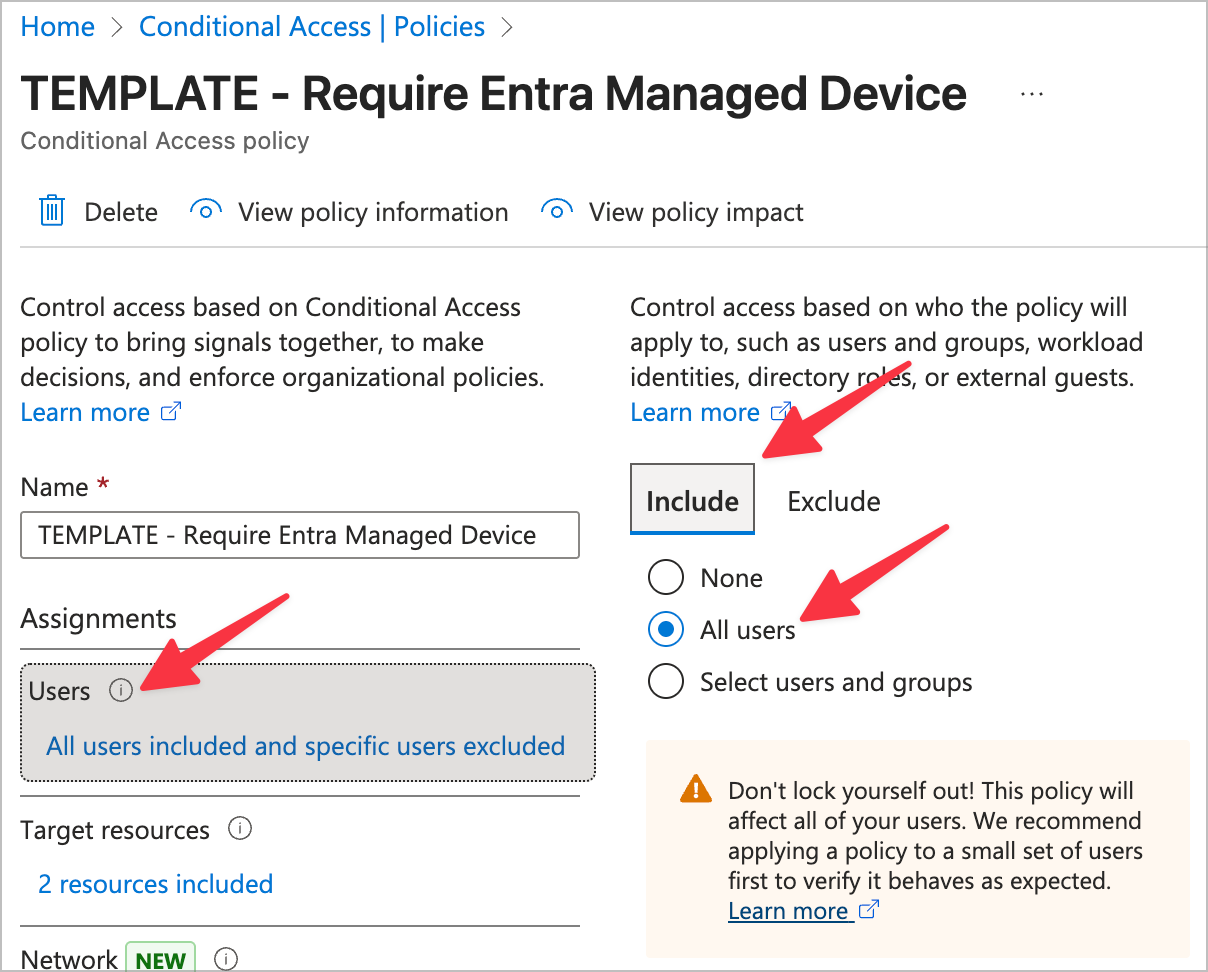
- Users
- Include
- All users
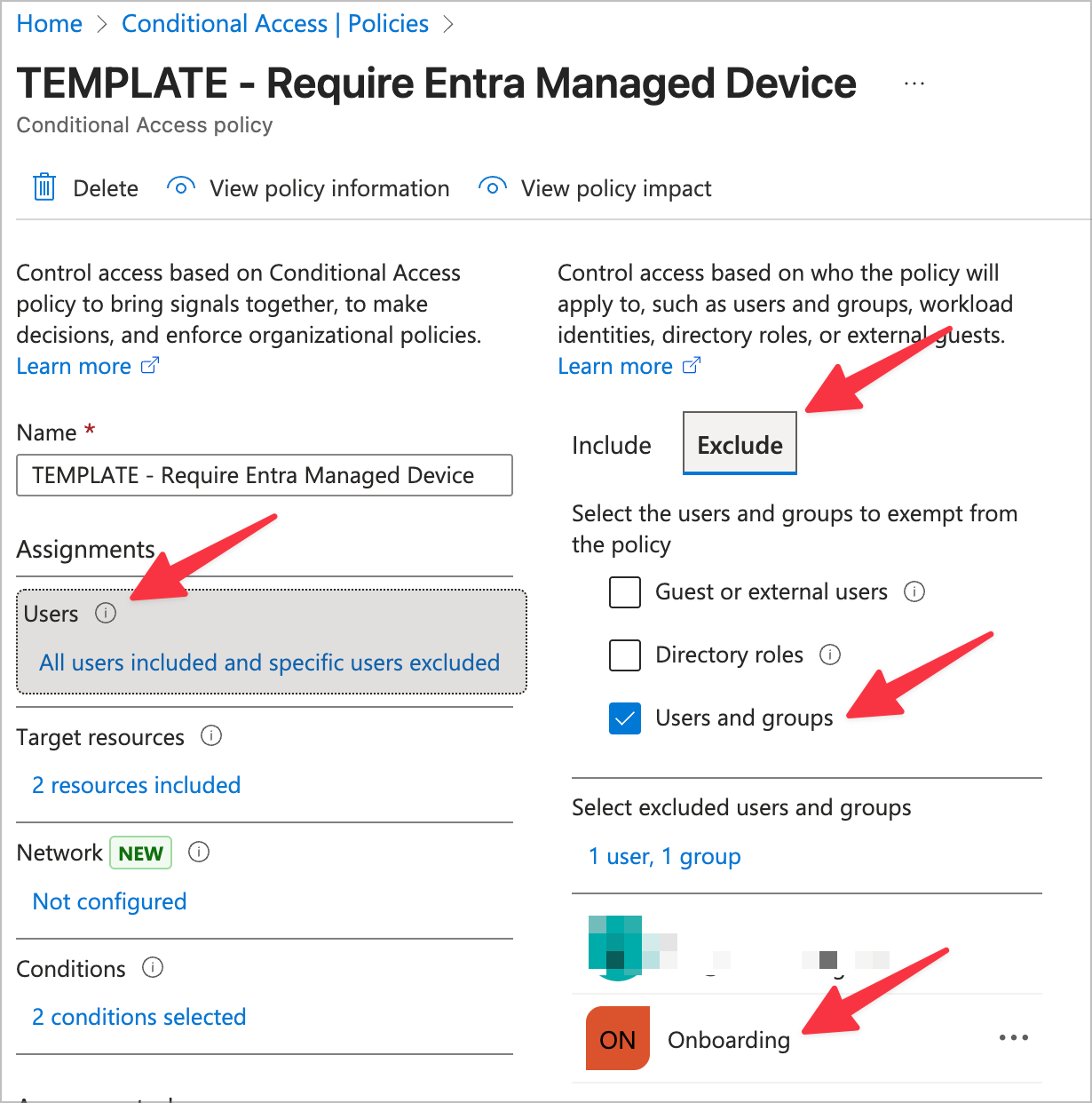
- Exclude
- Users and groups
- Onboarding (new group we created)
- Break glass account (so we can't get locked out!)
- Onboarding admin account (used by techs to configure new machines)
- Users and groups
- Include
- Target resources
- Include
- Select Resources
- Microsoft Admin Portals
- Office 365
- Select Resources
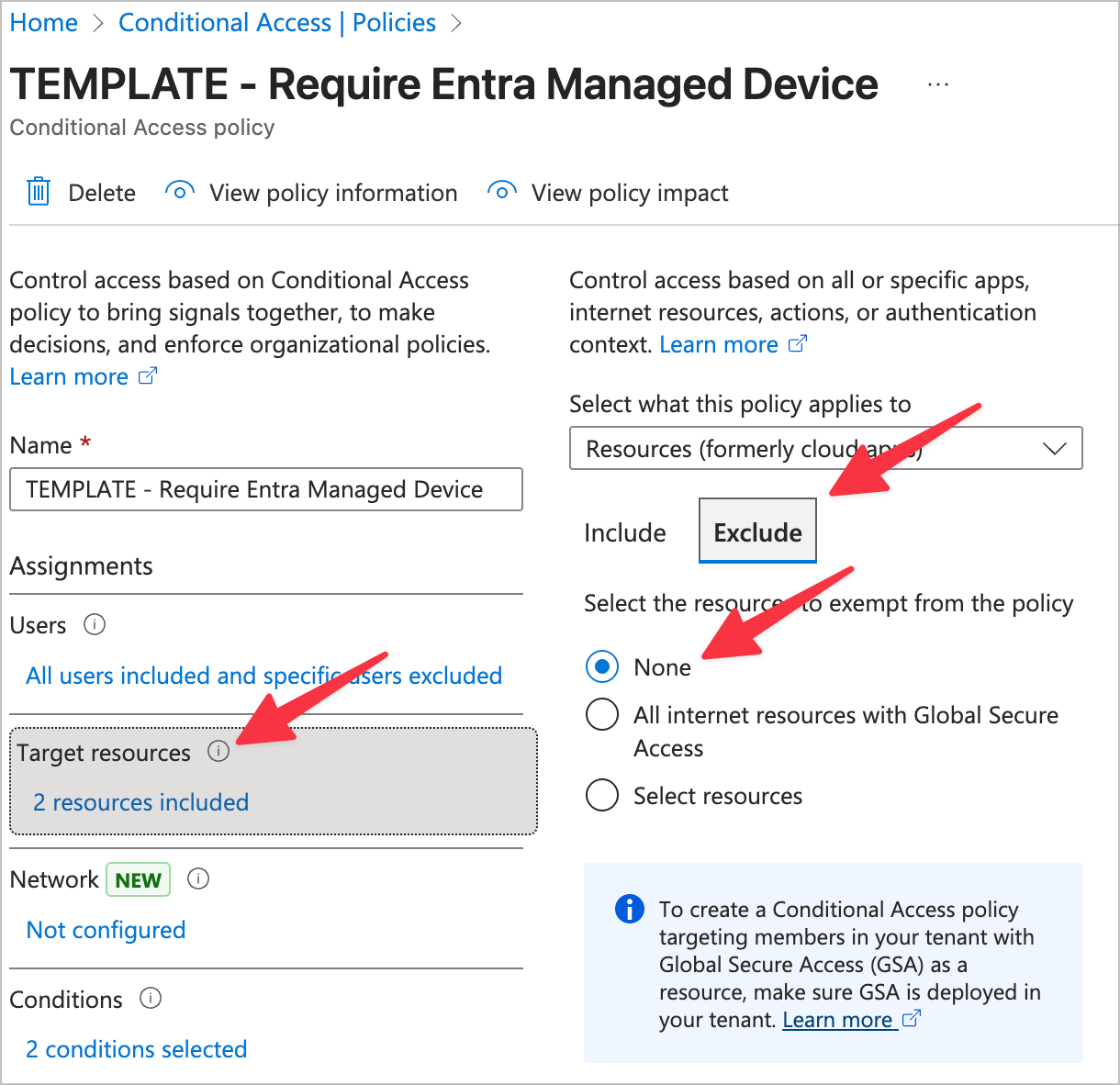
- Include
- Exclude
- None
- Conditions
- Device platforms
- Configure: Yes
- Include
- Select device platforms
- Any
- Select device platforms
- Filter for devices
- Configure: Yes
- Exclude filtered devices from policy
- trustType = Microsoft Entra Joined
- OR trustType = Microsoft Entra hybrid joined
- OR trustType = Microsoft Entra registered
- Device platforms
- Grant
- Block access
Here's some screenshots in case the text doesn't convey it well:
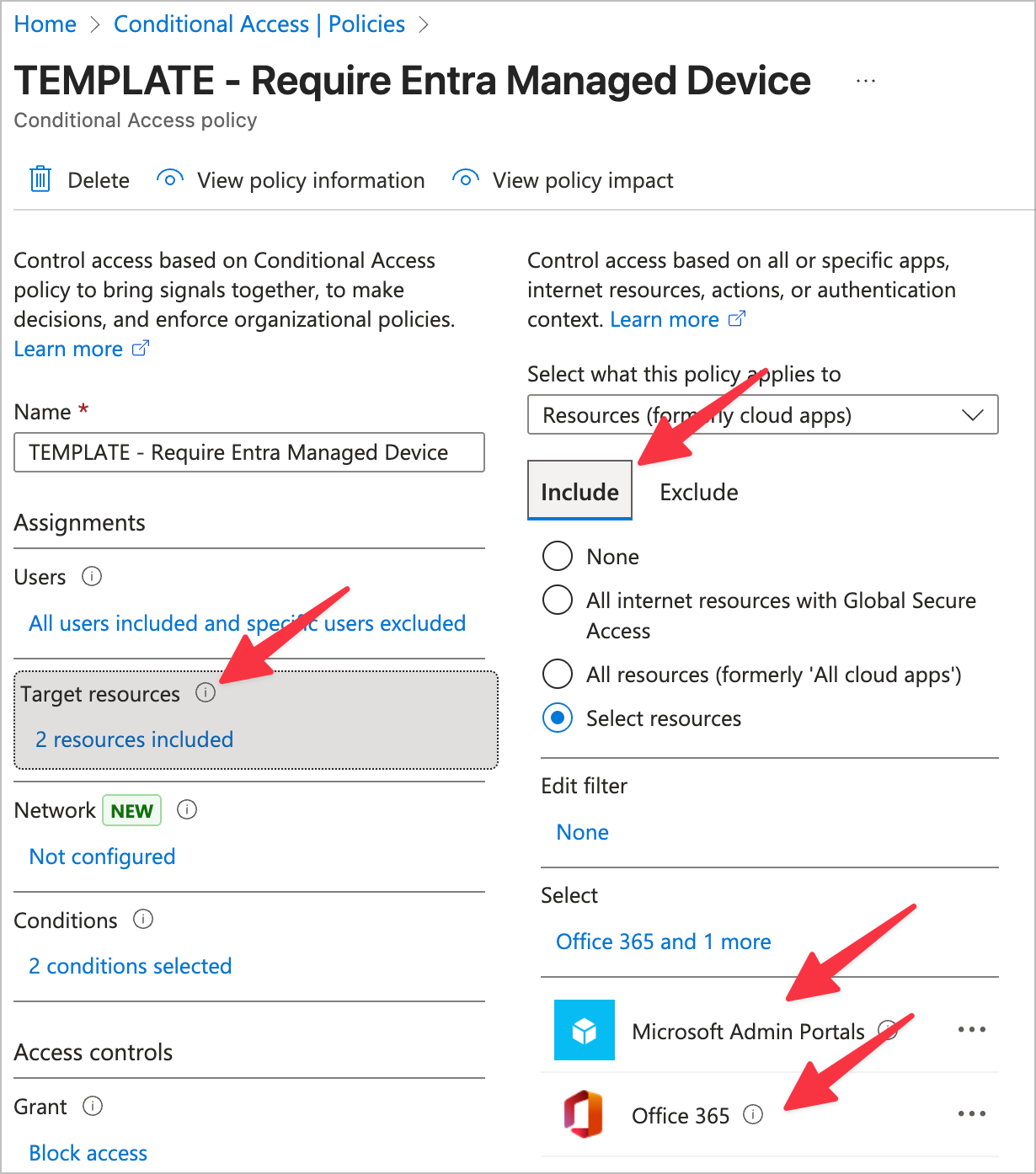
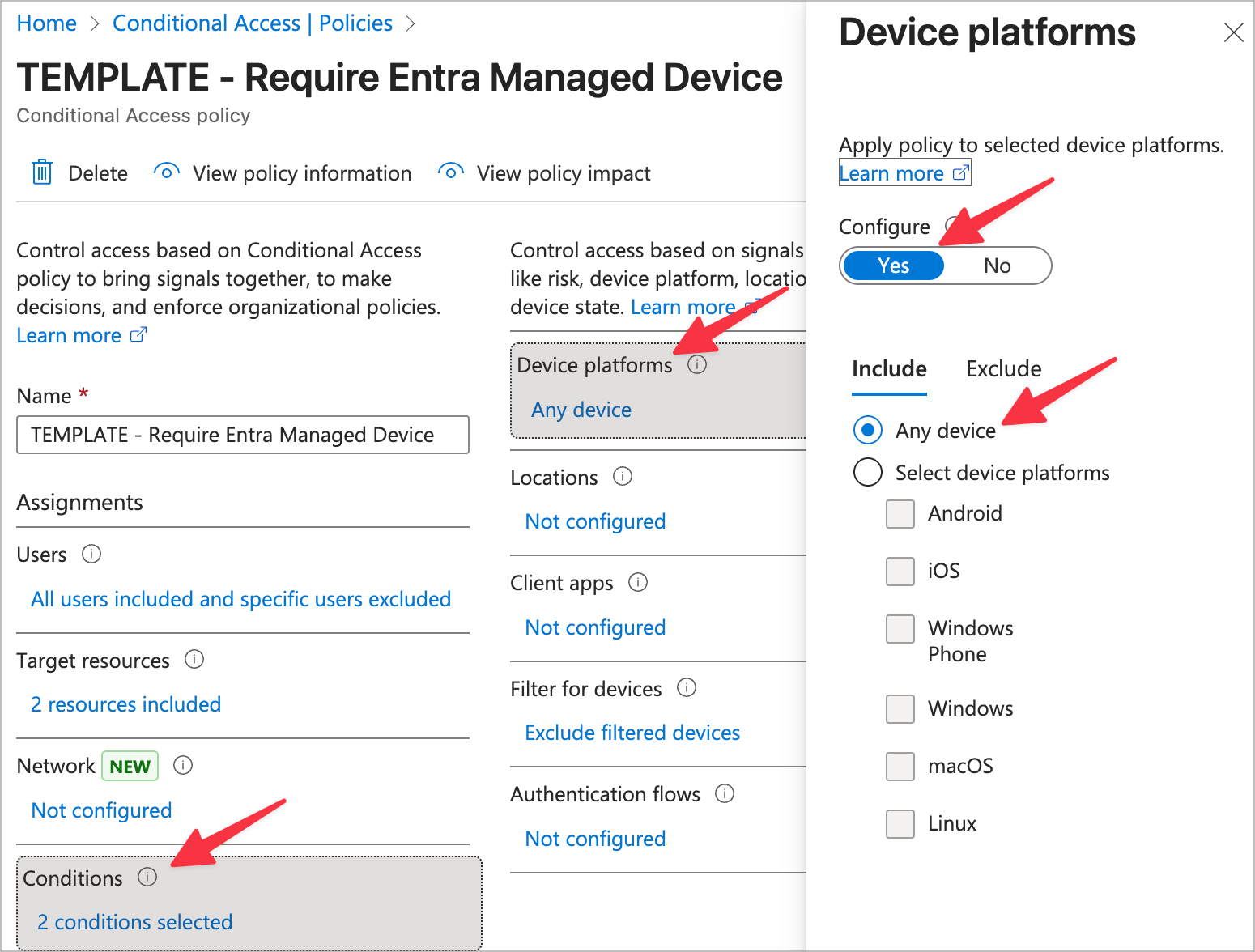
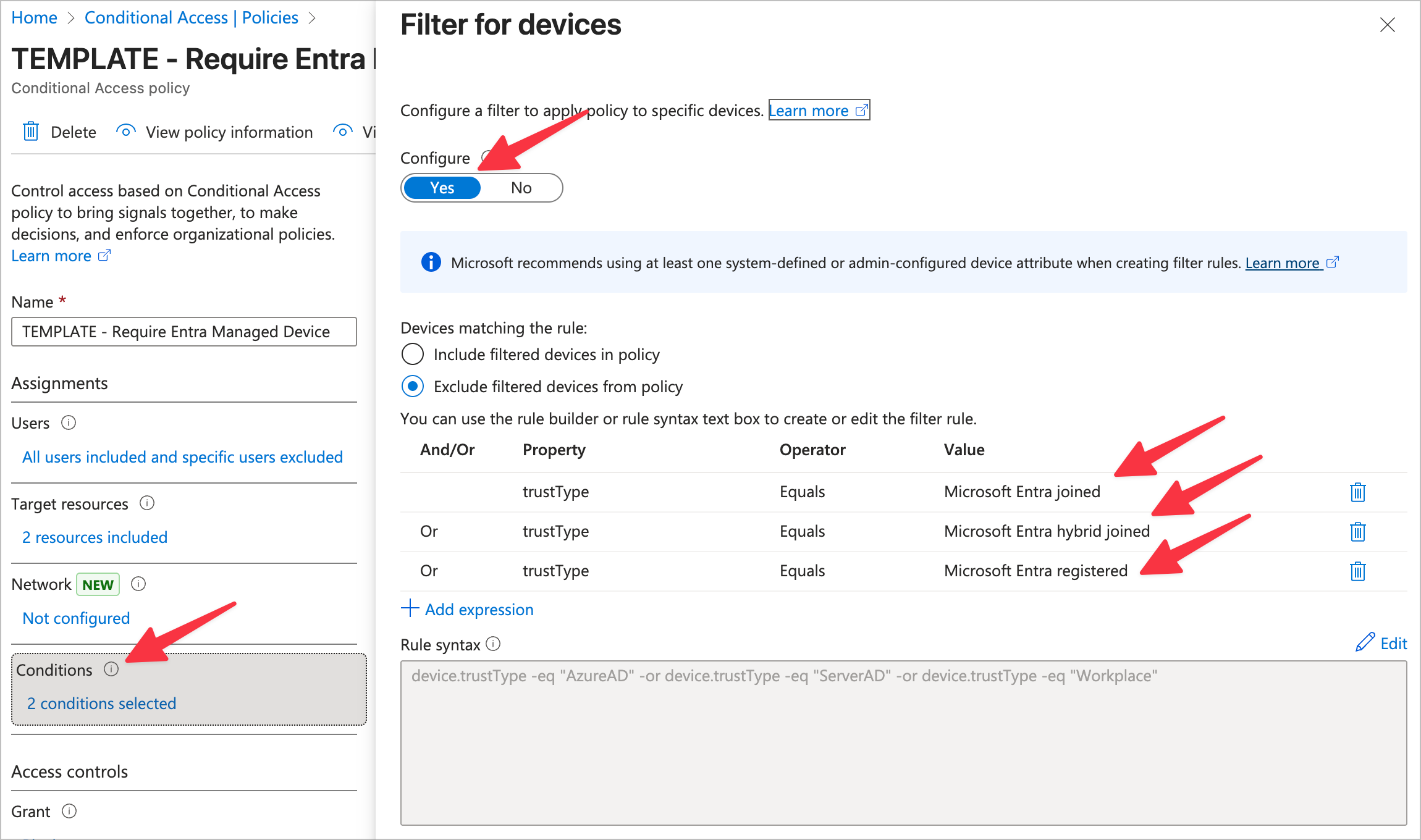
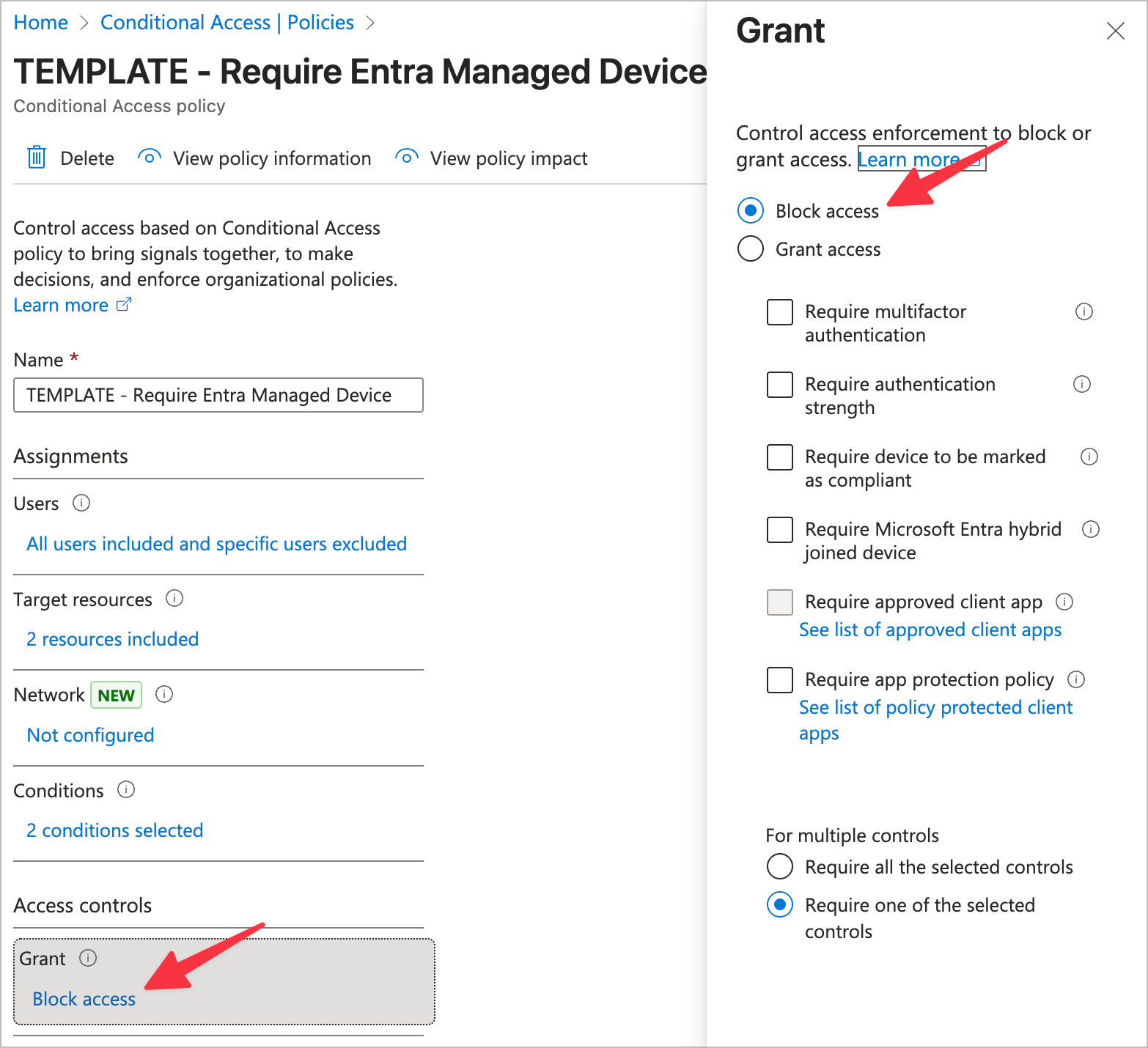
Note: Notice for Target Resources we chose "Microsoft Admin Portals" and "Office 365". These two cover all authentication scenarios via Entra, but we are purposefully not including general third party Enterprise Apps in this scope. This is because if we explicitly state which enterprise apps we will allow and which we will not, every time a user wants to authenticate a new service, we will have to go add it to the list. That's actually an incredibly positive and more secure configuration, but since the scope of this blog is the most simple, low impact strategy to get a third factor of authentication, I've opted to leave that out. Feel free to include Enterprise Apps by selecting "All Resources" if you want to take this security policy to the next level! After that, you'd add your approved Enterprise Apps to the Exclusions section.
Step 3: Entra Register devices
Windows
Keep in mind this will not allow us to manage this Windows machine, rather, only prove it's a trusted device. For this reason, this is a safe bet for even a BYOD device. If this was a company owned device it should be fully Entra Joined so it can be properly managed, but again, that is outside of the scope of this blog.
On the Windows machine perform the following steps:
- Go to Settings
- Go to Accounts
- Choose
Access work or school - Choose
Connect - Enter the users work 365 credentials
- Verify the device now shows in
Devicesat Entra Devices - Install the Microsoft Single Sign On extension on relevant client browsers which will allow the Microsoft session to passthrough to the browser and allow login: Microsoft Single Sign On Chromium Extension Download
Note there's a common issue here where you'll get an error if you have WIP set toAlland it's not actually configured or in us. Go to Windows Information Protection (WIP) and set WIP toNoneand then try again
Note the browser extension is not required with the Microsoft Edge browser
MacOS
Keep in mind this will not allow us to manage this MacOS machine, rather, only prove it's a trusted device.
- Install the
Company Portalfrom Microsoft from here: Company Portal Download and then sign in with the users work 365 account. Now here is where there's a little trick..- If you just sign in and stop at the
Install management profilestep (as in, do not do that step and just exit), this Entra Registers the MacOS device. - If you continue, you will
Entra Registerthe device, but you will also install the Intune MDM profile. This would make your MacOS device not onEntra Registered, but also "Managed" which can be used as another evaluation point in conditional access.
- If you just sign in and stop at the
- Verify the device now shows in
Devicesat Entra Devices
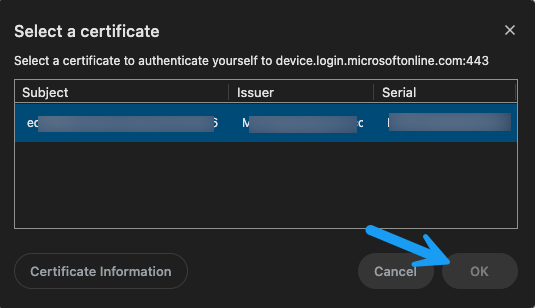
Note that once this is completed, the end-user should re-launch their browsers. Once they go to sign into 365 in the browser, they will see a prompt from Keychain to allow the certificate to be passed into that current session. Hit OK on that, and now the browser will be recognized as a browser being ran on their Entra Registered device, so the sign-in will be allowed under our new conditional access policy.
(Optional) Mobile
Luckily this is simple for mobile if you're wanting to also enable the Entra Registered requirement for all mobile devices. The issue here though is often times mobile devices are a bit more difficult to get movement on to latest policy, so you may want to explore the less invasive first step of app authentication limitation. For now, let's cover the Entra Registration, and then we'll dive into the other method.
- Download the Microsoft Authenticator app from the app store
- Go to
Settingsin the Microsoft Authenticator app - Select
Device Registration - Select
Register device - Type in the appropriate user work 365 email
- Select
Register device - Verify the device now shows in
Devicesat Entra Devices
Note that if you do this, you'll need to update the Conditional Access Policy we created above to also include iOS, and Android for this to go to work.
Step 4: Mobile device limited authentication to Microsoft official apps
If you're just getting your feet wet in limiting the scope of what can authenticate to Microsoft Entra and how, I think a great first step for mobile is to limit what can authenticate from the phone instead of which phones can authenticate (just to start). This is no (or very little) impact to the end-users, but a nice security improvement.
Additionally, if you used the "Any device" on the CA above, I would still recommend using this. It's not immediately obvious, but what's happening on this policy is it's limiting mobile devices to only be allowed to login from Microsoft apps. I personally daily drive this and encourage all companies I work with to do the same.
- Go here: Conditional Access Policies
- Create a new Conditional Access Policy and name it
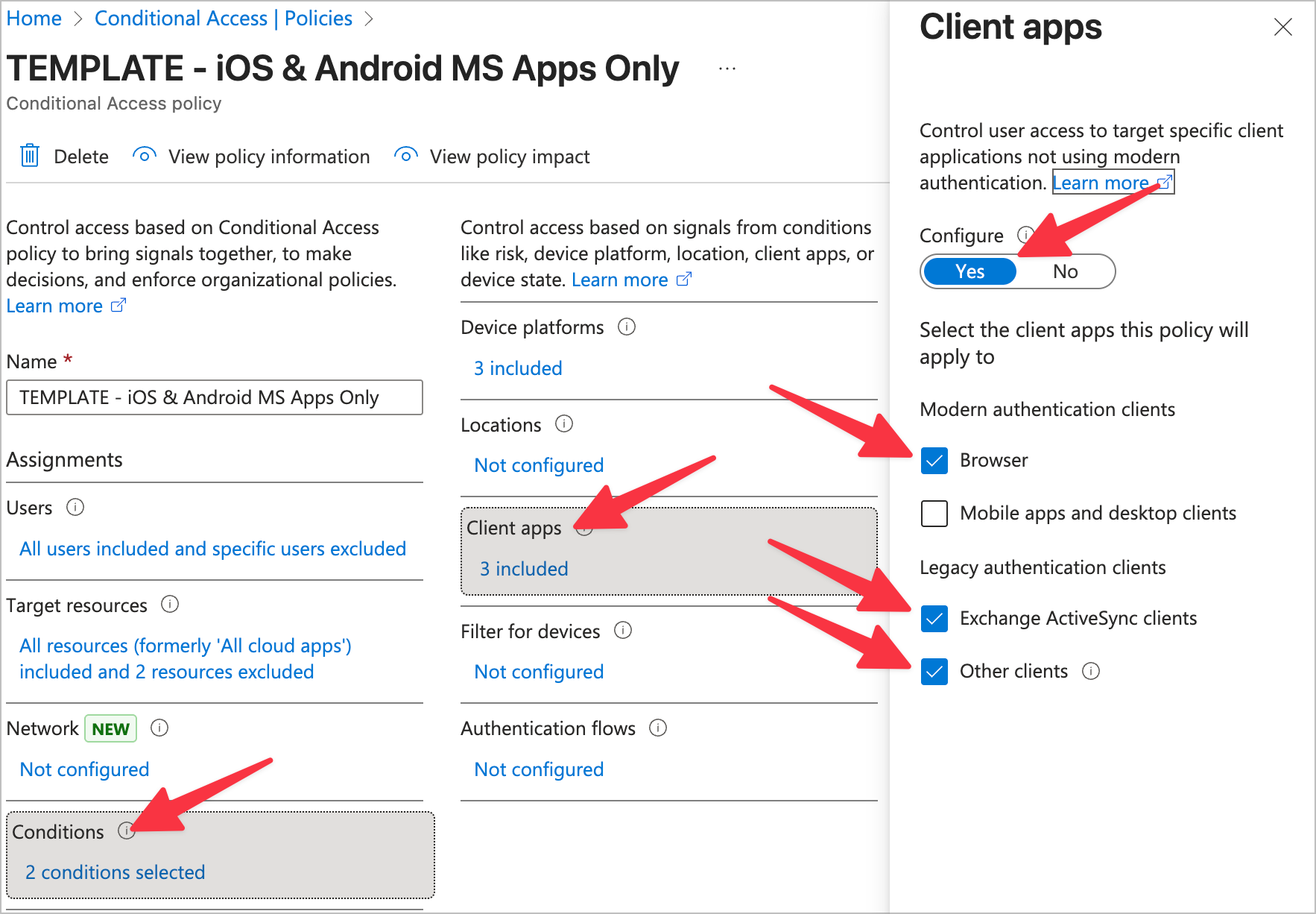
iOS & Android MS Apps Only - Apply the following settings in the Conditional Access Policy
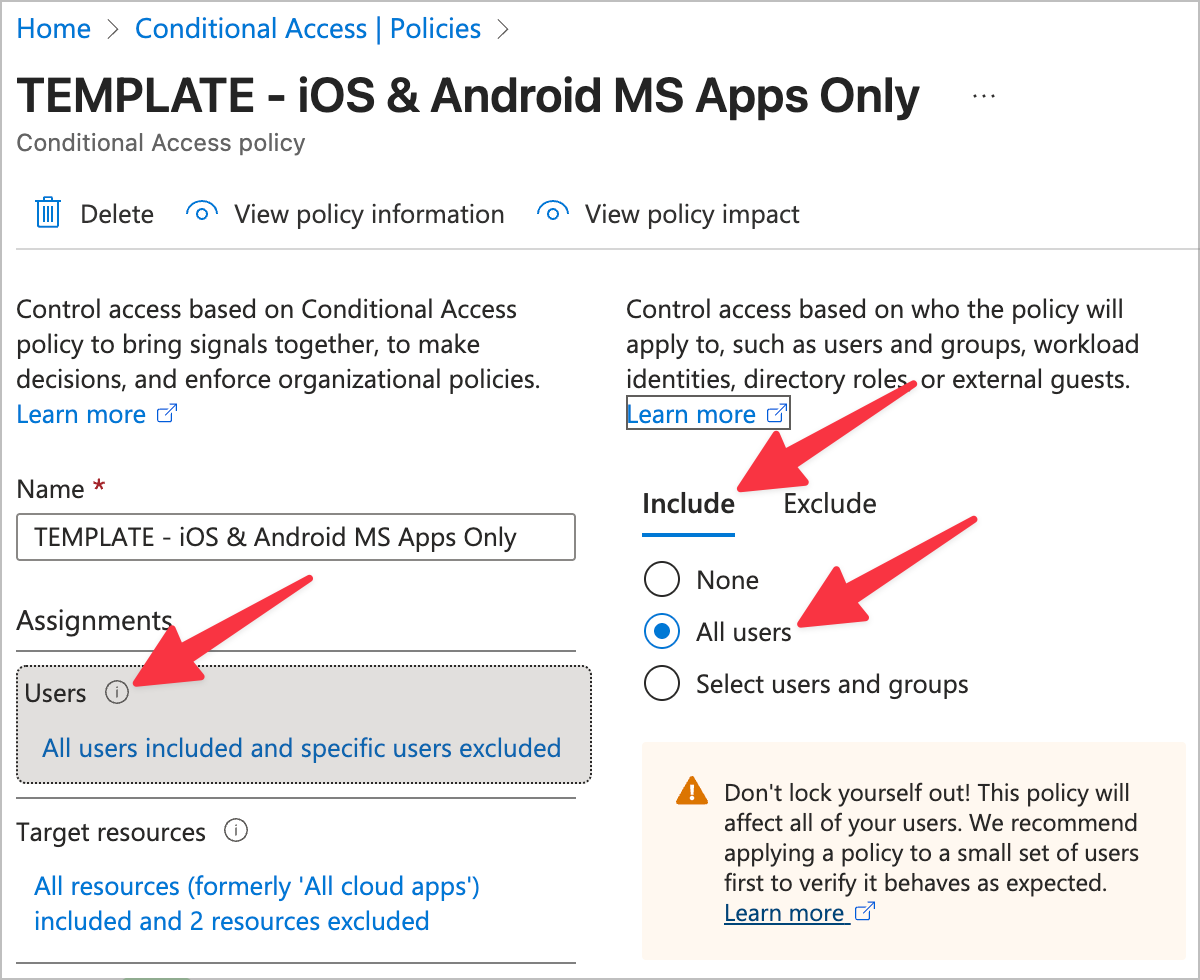
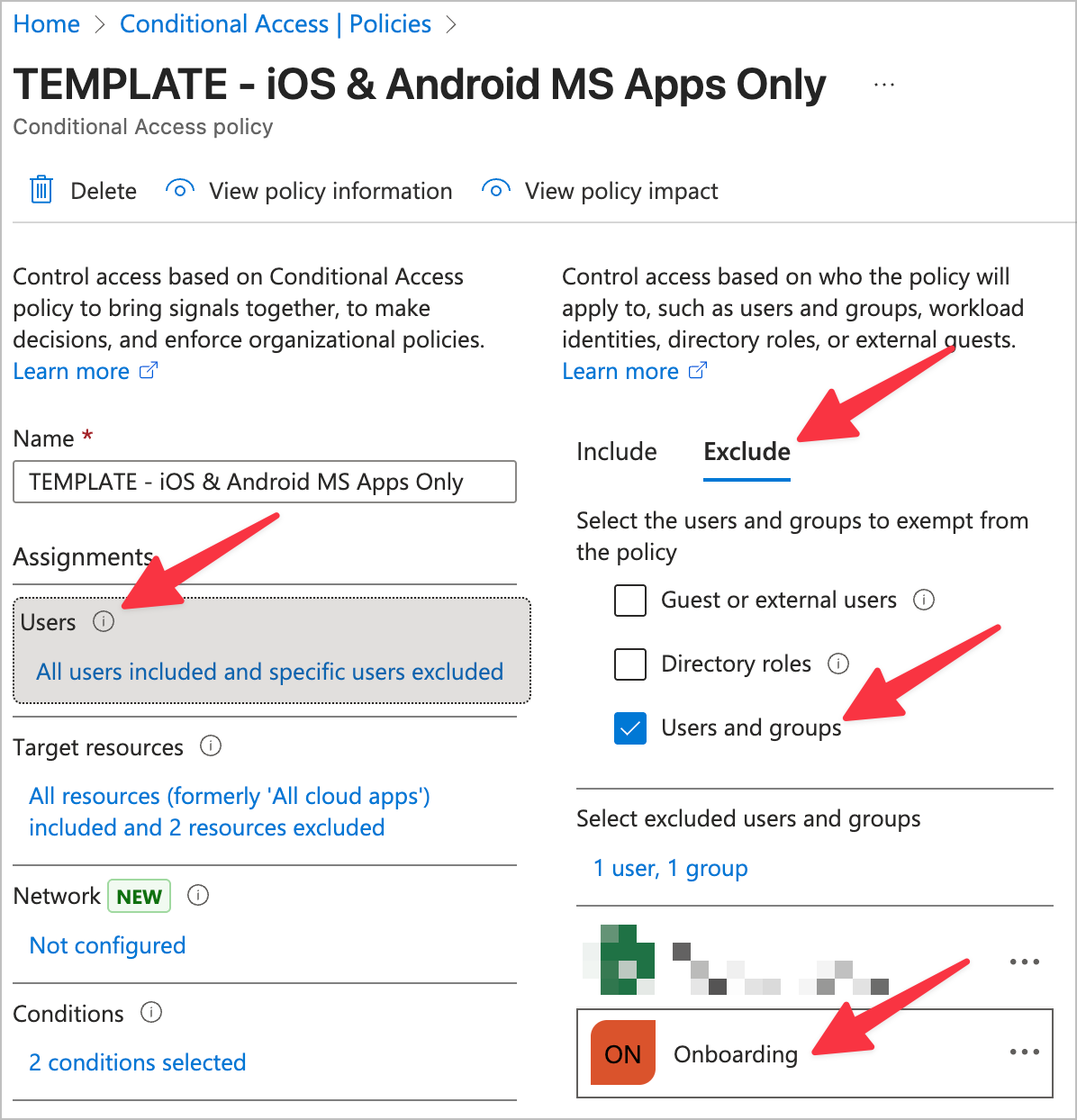
- Users
- Include
- All users
- Include
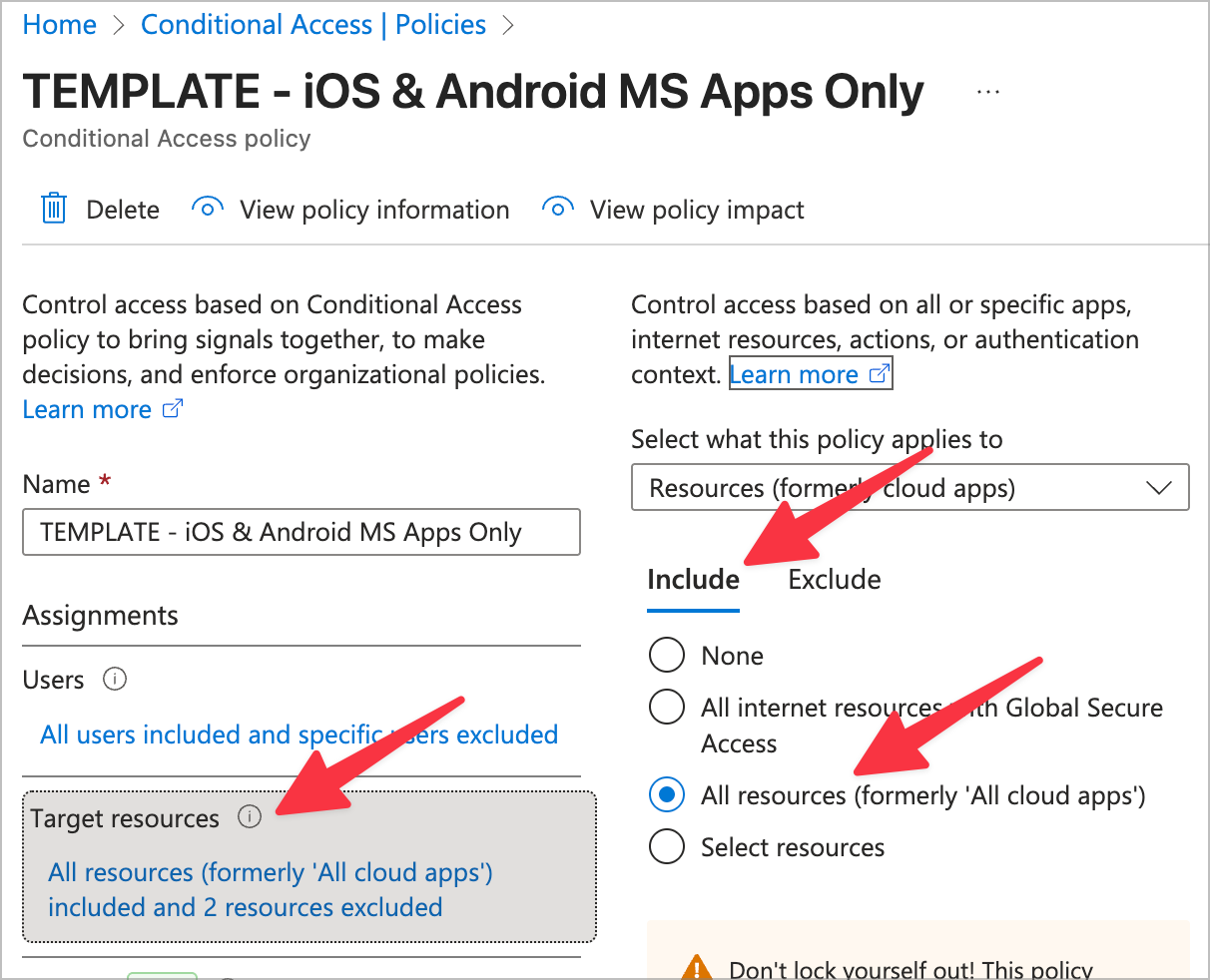
- Target resources
- Include
- All resources
- Include
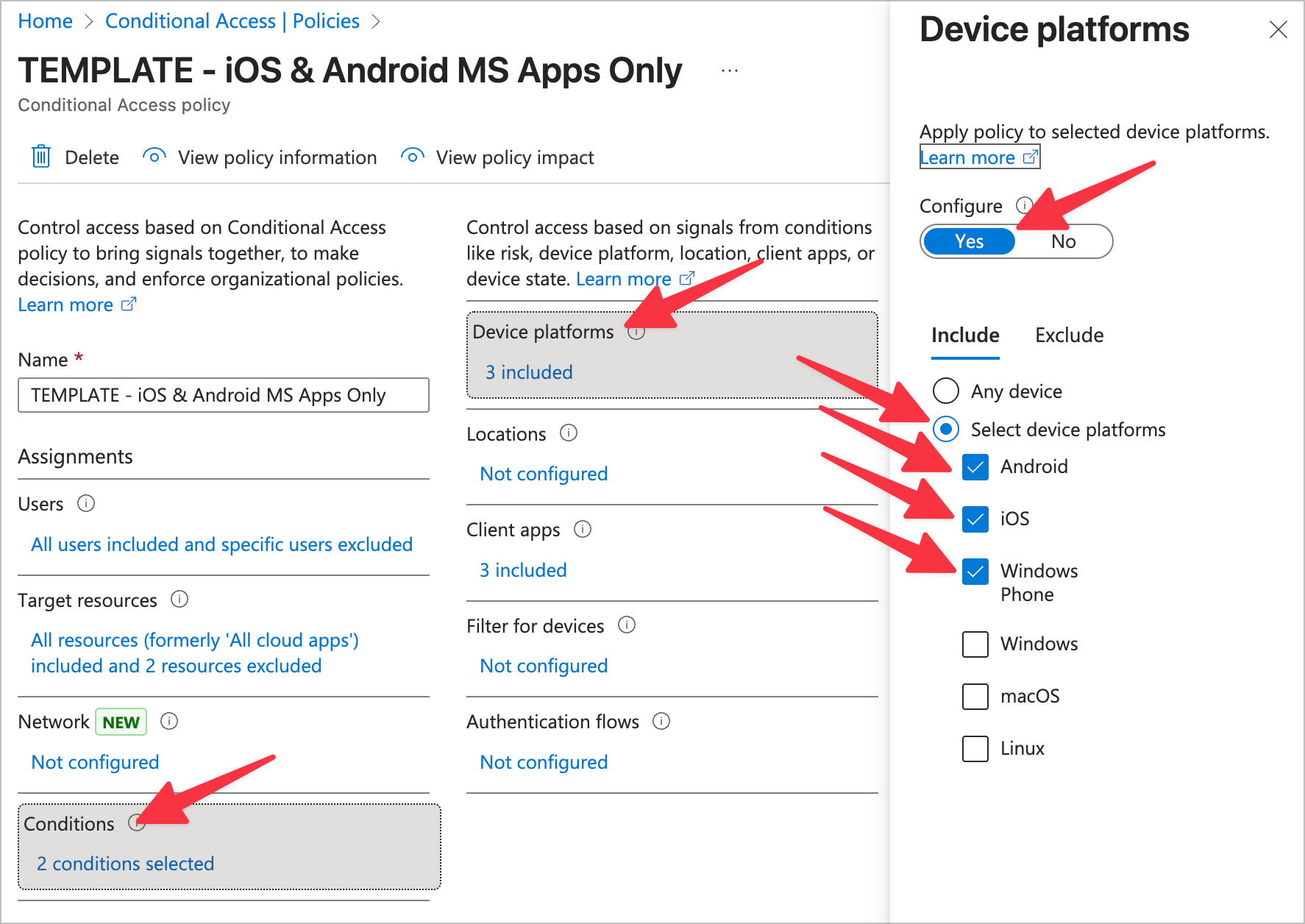
- Conditions
- Device platforms
- Configure: Yes
- Include
- Android
- iOS
- Windows Phone (lol)
- Client apps
- Configure: Yes
- Browser
- Exchange ActiveSync clients
- Other clients
- Device platforms
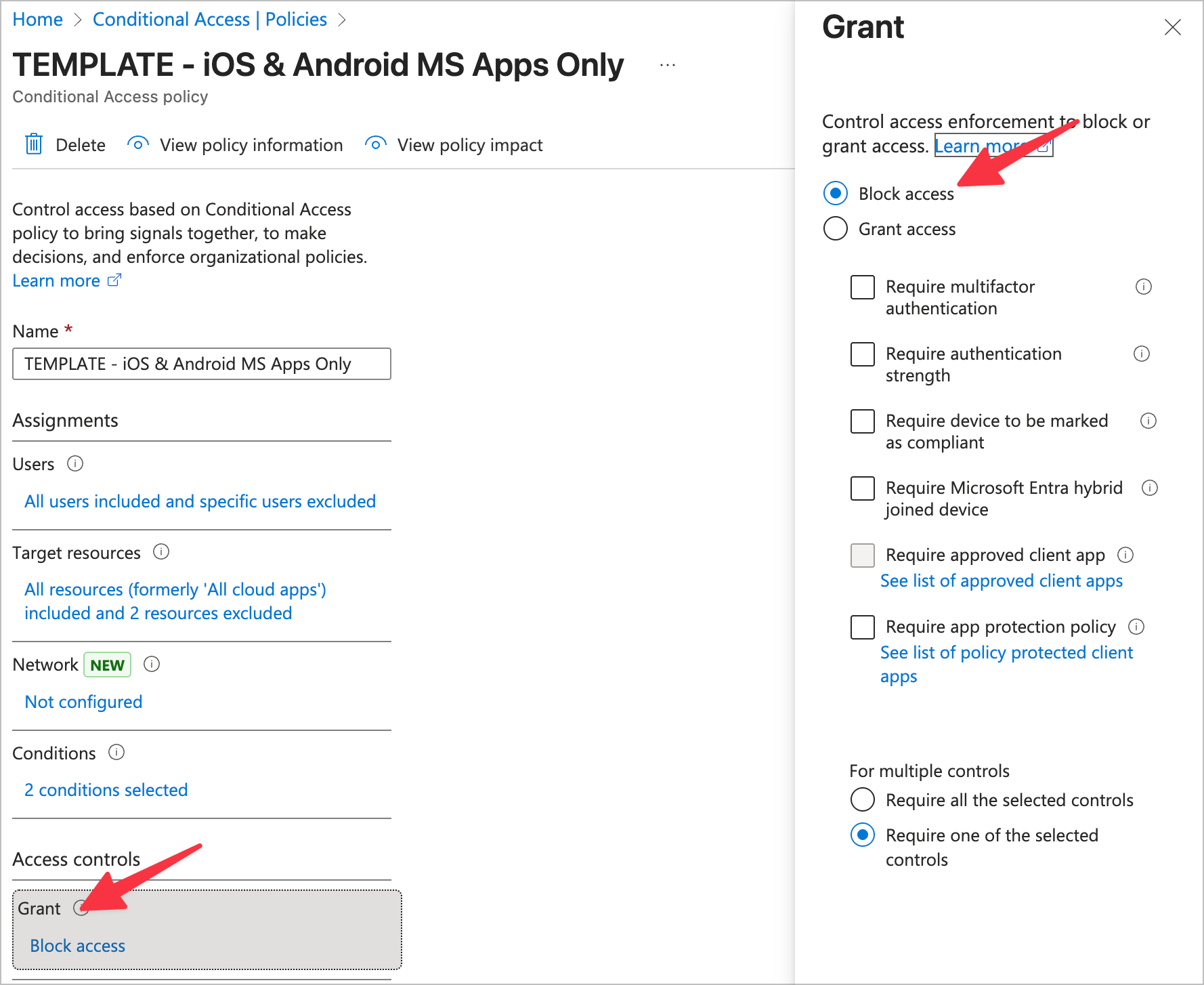
- Grant
- Block access
Here's some screenshots in case the text doesn't convey it well:
Wrap up
If you enjoyed this and/or if it brought you value in any way, please consider subscribing on this page. If you really enjoyed it, please consider a paid subscription. It's basically buying me a coffee a month and makes me feel less like I'm screaming my thoughts into the void. When I post a blog in the future it will send it right to your email– no spam. Thanks for reading!
